
Overview
This feature captures and manages quoted labour time on jobs and quotes, and introduces the Job Labour Reconciliation Screen as a final check before invoicing. The Job Labour Reconciliation Screen displays clocked and quoted labour values side by side, making it easy to compare the two, identify discrepancies, and write up or write down labour charges as required before finalising the invoice. The system automatically calculates and displays line-level and section-level variance.
Adding Quoted Hours to a Job/Quote
Quoted hours can be added to a job using different workflows depending on the process followed.
Adding Quoted Labour Hours via Section
- On the Quote or Job Maintenance screen
- Add a section using the Section button
- Enter the quoted hours in the fields provided
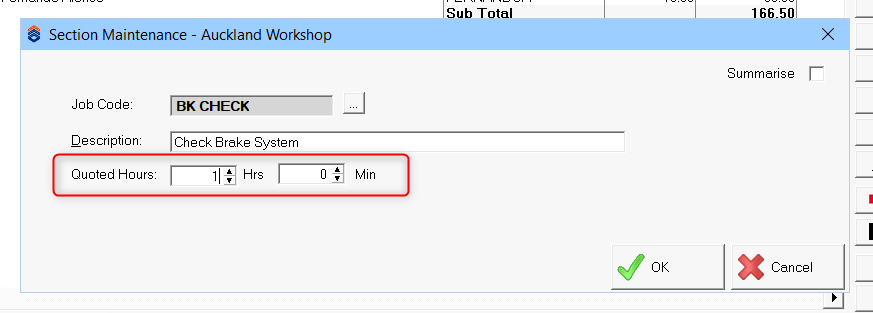
- Click OK
Adding Quoted Hours via Job Kit
If you add a job kit to the job or quote, the labour hours assigned to that job kit by default will be applied as the Quoted Labour.
? Note: When a quote is converted to a job, quoted hours transfer exactly as entered without changes.
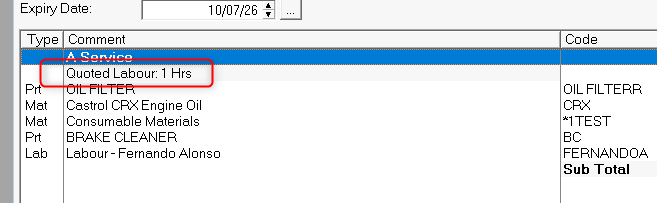
The quoted labour values are displayed in the Quote Maintenance and Job Maintenance screens as shown below:
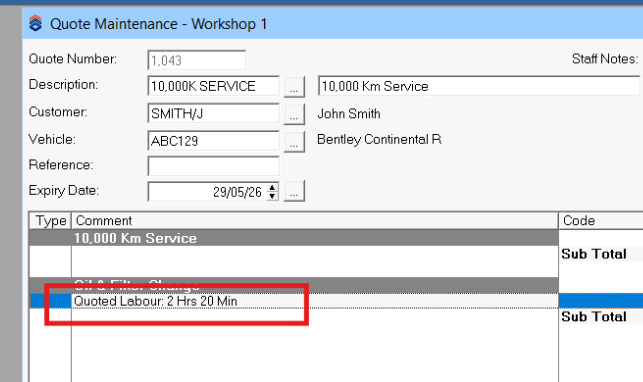
You can edit the quoted labour hours on a quote or estimate by double-clicking the section description line, which opens the Section Maintenance screen where you can adjust the value directly.
The Job Labour Reconciliation Screen
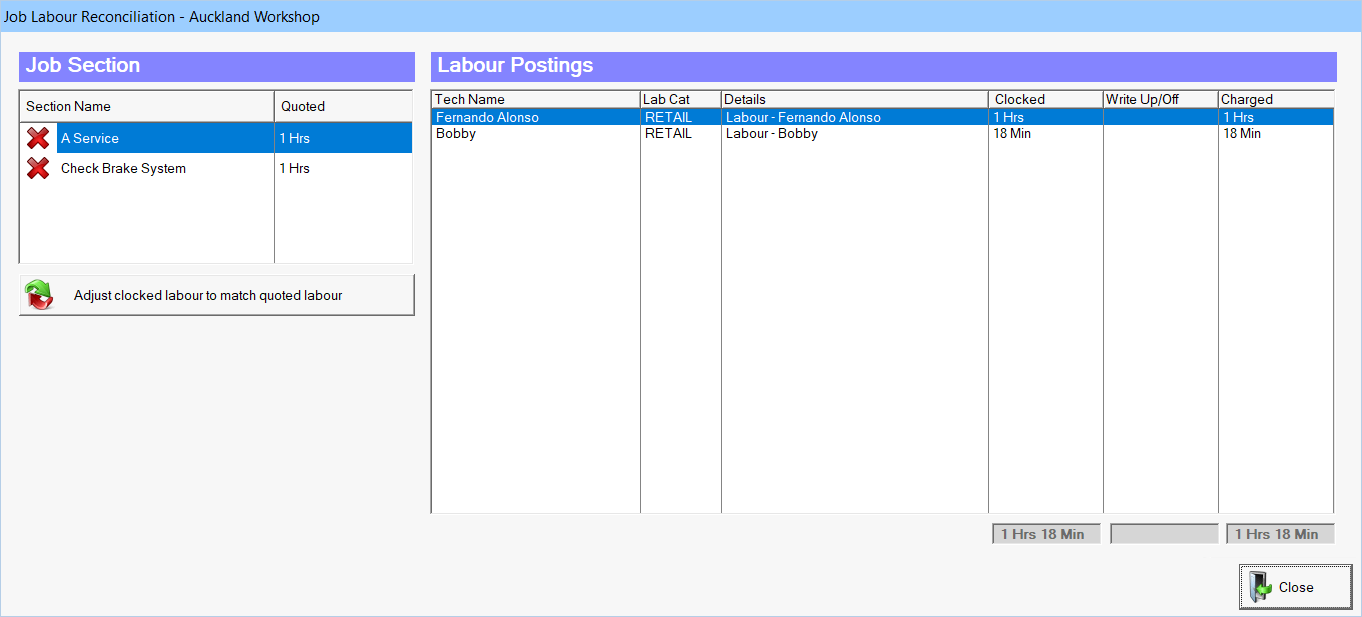
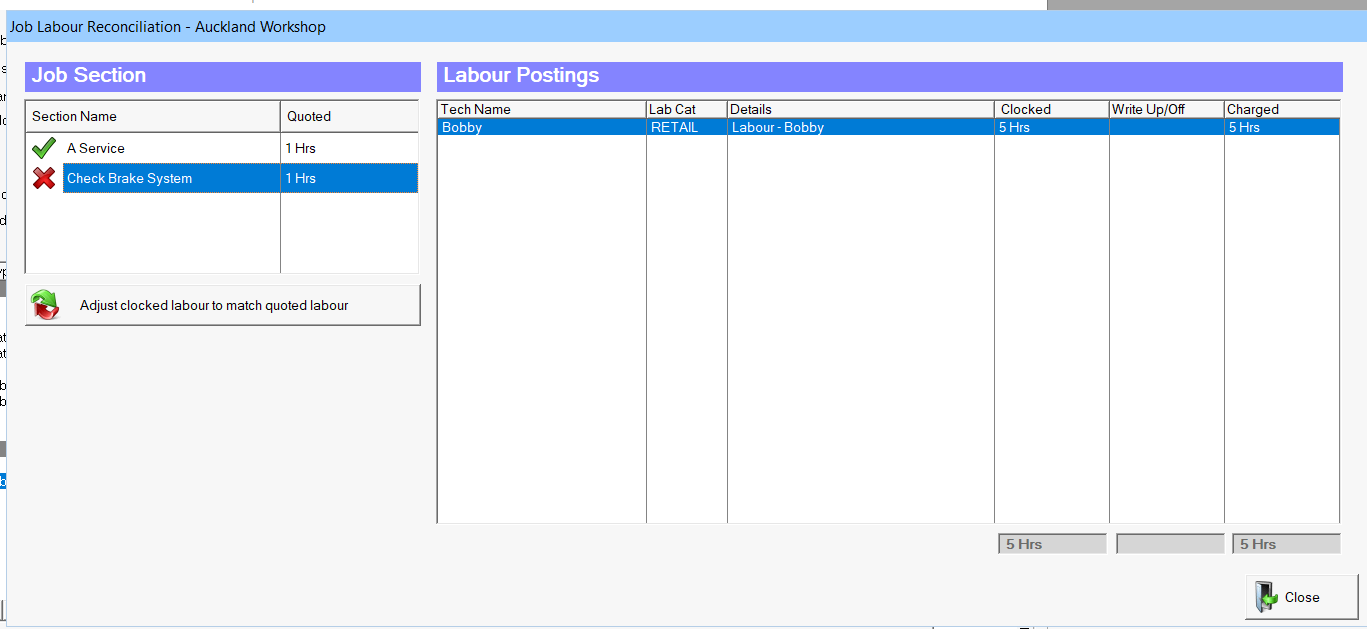
When you double-click the Quoted Labour line on a job, the Job Labour Reconciliation Screen opens rather than the standard Section Maintenance view. This screen is the primary tool for reviewing and reconciling labour before invoicing.
The screen is split into two panels:
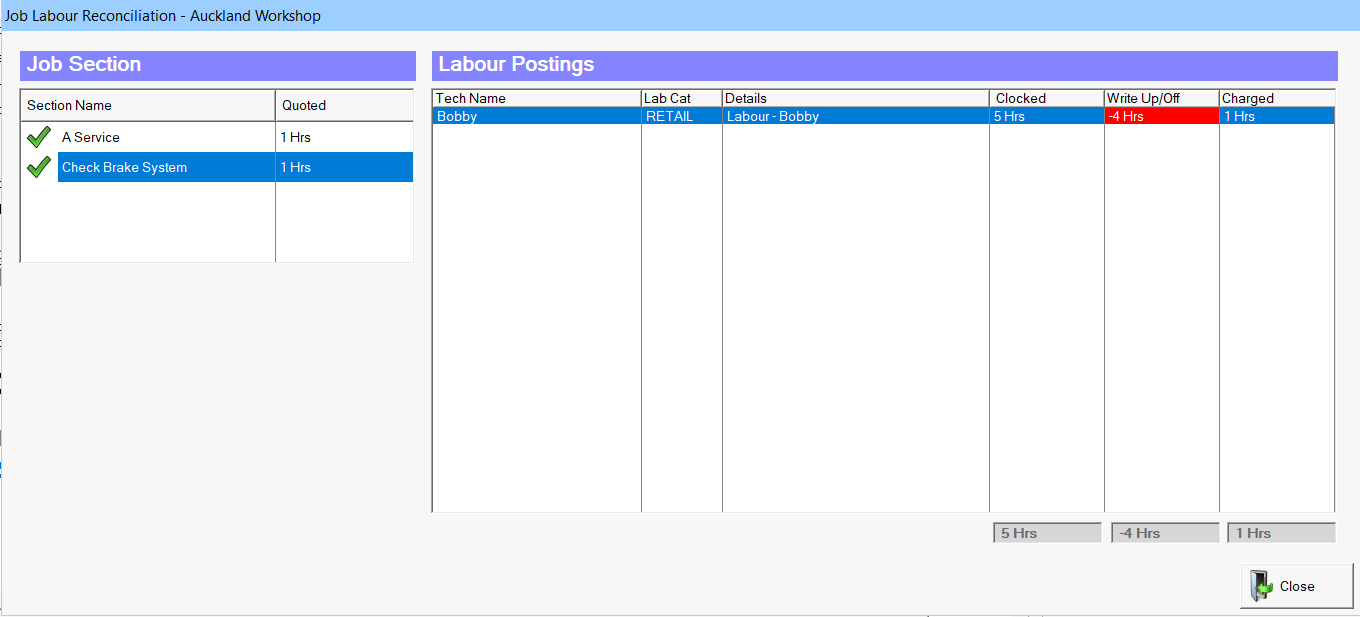
- Job Section (left): lists each section on the job with its quoted hours. A green tick beside a section name indicates the quoted hours align with the charged labour for that section. A red cross indicates a discrepancy between quoted and charged time, regardless of whether clocked and charged time are equal.
- Labour Postings (right): shows the labour entries for the currently selected section, including the technician, labour category, clocked time, any write-up or write-down, and the charged amount. The Write Up/Off column displays a positive value in green or a negative value in red where clocked and charged time differ.
Adjust clocked labour to match quoted labour
The Adjust clocked labour to match quoted labour button, located below the Job Section list, applies a proportional write-up or write-down to the labour postings for the selected section so that the charged time aligns with the quoted hours. This adjustment modifies the charged time only and leaves the clocked time unchanged.
For example, if a section has 1 hour quoted but 5 hours clocked, clicking this button will write down the charged time to 1 hour while leaving the clocked time at 5 hours.
The screen can also be configured to appear automatically when closing an invoice if quoted and charged labour do not match. See Enforce Quoted Labour below.
Enforce Quoted Labour
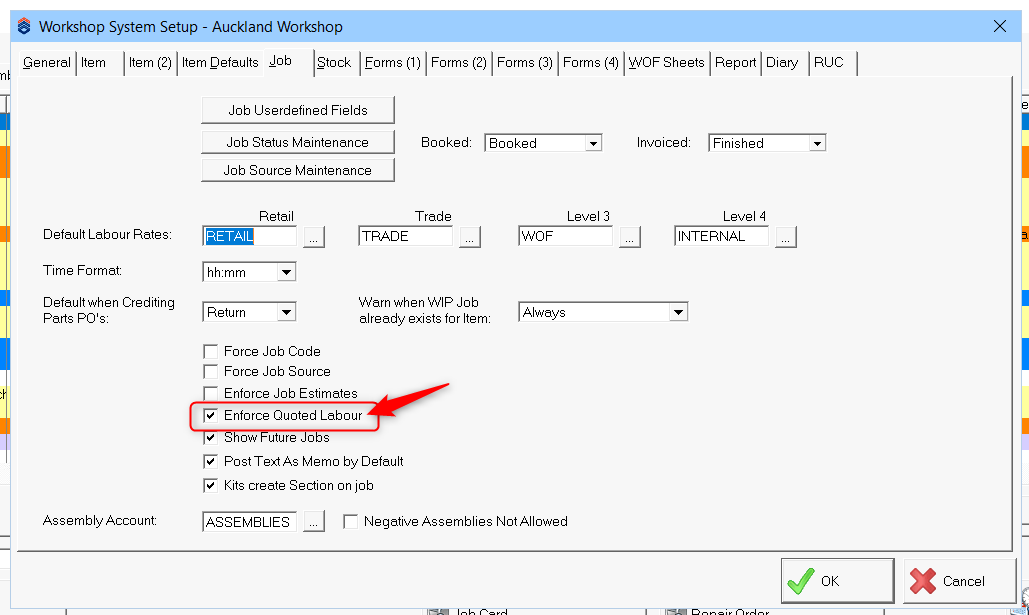
You can apply a setting that causes the Job Labour Reconciliation Screen to appear automatically when closing an invoice if the quoted labour does not match the charged labour. This helps enforce a consistent policy of aligning labour charges with quoted hours.
To enable this setting:
- Navigate to Maintenance > System Setup
- Select the Job tab
- Tick the Enforce Quoted Labour option
Quoted Labour Without Time Entries
If a section has quoted labour but no corresponding time clock entries, the system generates a manual labour line. This line includes a charged time value with no booked (clocked) time, ensuring all quoted labour is represented for billing purposes.
Additional Considerations
- Quoted labour may originate from manual entry, Job Kits, or Quotes
- Quoted labour represents agreed chargeable work and may not always match actual time recorded
- Quoted labour can be applied to the relevant job section to maintain billing accuracy, ensuring correct invoicing regardless of time-clocked discrepancies