
TABLE OF CONTENTS
Order Approval Process
Introduction
Approvals are available in Orion for the Parts and Workshop Departments. Order approvals offer exactly what the name suggests, a way to enforce Users to get approvals for Purchase Orders over a set value.
Users can be set with an upper limit that they can approve which enables a tiered level of approvers (if required).
Once a purchase order goes over the value limit the User is required to seek approval before being able to export, print or receive the order. Once the order has been approved any changes to the costs that increase the order value trigger the order to require further approval.
Setup
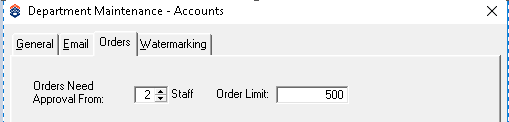
In each Parts or Workshop department set the number of people that need to approve the order (maximum of 2) and the limit at which the approval is required. If approval is required on all orders set to zero.
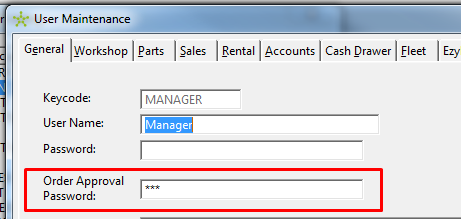
Any Users that can approve orders will need an “Order Approval Password” set in the General Tab (User Maintenance).
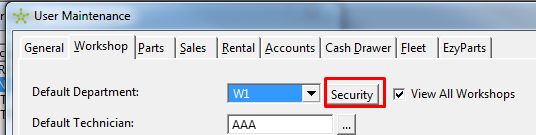
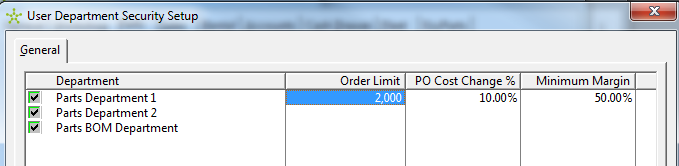
Then in the Parts and/or Workshop tab the Users maximum approval limit can be set via the “Security” button
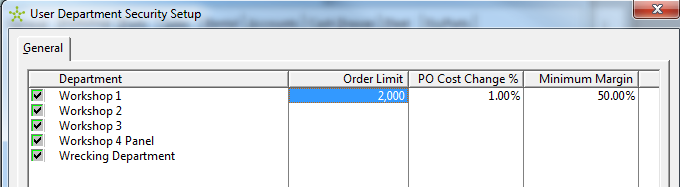
Each department can have a different limit if required.
There are also settings to limit the amount a user can change the cost on an Order (a percentage). And to force a minimum margin the user can apply on an Order.
Ordering Process - Request
Parts and Workshop Orders
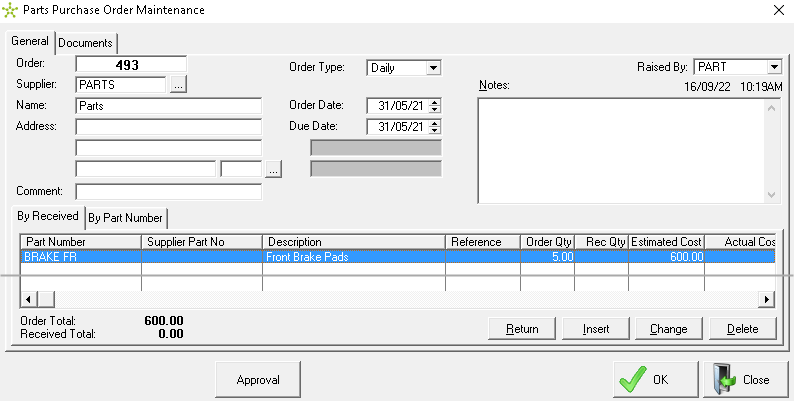
When the users create a purchase order and start loading postings (with a cost), the system checks the order total. Once it goes over the department “Order Limit” the Approval function is activated and the order buttons (Print, Export, Creditors Invoice, Finalise and Exit) are hidden and replace with an Approval button.
Note: If the cost is lowered below the ”Order Limit” then the Approval function will be disabled.
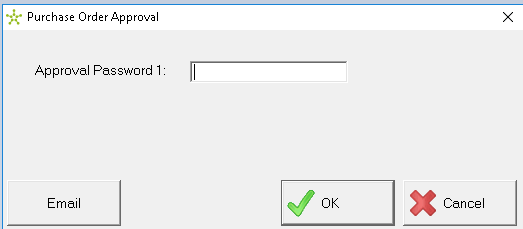
When clicking on the Approval button the Parts purchase order approval screen is opened. The user can then either type in their approval password or click on the email button…
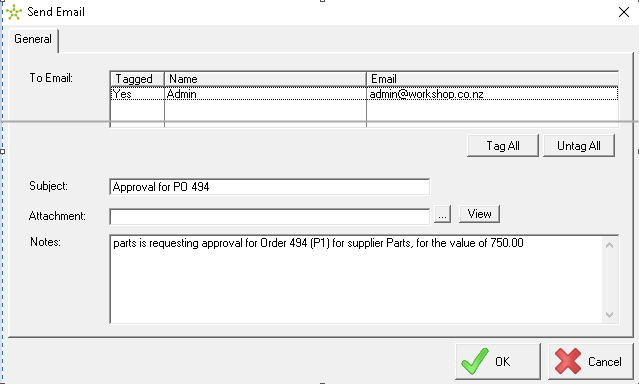
…and it will open a window where the user can email the appropriate person(s) to approve the order. Note that the user will not show in the below screen unless they have an email address loaded in their user setup and have been given an Order Limit.
Email (to approver) Example:
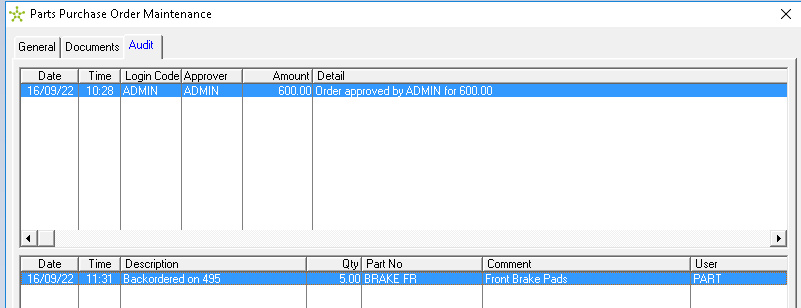
The Order has a a Audit Tab and any approvals and requests are recorded here.
Note: The lower section of this Audit screen (not displayed) is to record back order information
Order Process - Approving
The Approver(s) will receive an email to approve an Order.
There are two ways to navigate to the Order
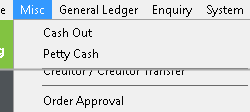
From the <Misc> <Order Approval> menu, or
b) Open the Order
<Misc> <Order Approval> menu
Double click on the Outstanding order requiring approval
Note: All Orders requiring approval will display in the listing. Ones with a Red value mean the person who is logged in doesn’t have a high enough level.
Next select the “Approval” button, this will open the Purchase Order Approval screen where the user can enter their password
Note: It doesn’t matter which user is logged in to apply the password.
Once the Approval criteria is met (i.e. 1 or 2 approvers),
An email can be sent to the Requestor (who created the Order). Note that the below email screen will not appear unless the user is not linked as the owner or creator of the order, and the requestor has an email address loaded in their user setup.
And then the Print button is unhidden, the Creditors Invoice and Finalise and Exit buttons are also unhidden, and the Receive button enabled.
.
The Audit log is updated
The Order creator can now receive the items and lower the cost if required, but if any order item has the cost adjusted to a greater amount (than approved) the order will be locked and require approval again.
FleetLink Order Approval
If the FleetLink request is above the “Order Limit” it will now require the person processing it to seek approval as per a Parts or Workshop Order. Select the “Email for Internal Approval” button to request (internal) approval to create a workshop Order with the estimate value.
The same process as above is followed before the “Approve” button is enabled.