
Secure Farmlands card payments with real‑time validation
The Farmlands Payment Integration allows ORION to securely connect to the Farmlands payment gateway, enabling real‑time validation and processing of Farmlands card payments during invoicing.
This integration extends the existing Farmlands Data Export add‑on (134) and adds online payment authorisation, validation, and refund support.
Important: Payment type vs payment integration
You may already have a Farmlands payment type set up in ORION.
On its own, this functions as a standard Charge to Account payment and does not validate card status or balance.
The Farmlands Payment Integration enables:
- Real‑time Farmlands card validation
- Balance checks before payment is accepted
- Clear approval or decline responses
- Accurate recording of Farmlands transactions and refunds
✅ Step 1: Check if you already have access
You already have access to the Farmlands Payment Integration if your ORION system has:
AddOn#134 – Farmlands Data Export
This add‑on now includes both:
- Farmlands data export functionality
- Farmlands payment gateway integration
If you are unsure whether this add‑on is active, contact Support or your Orion Account Manager to confirm.
✅ Step 2: Request activation (if required)
If you do not currently have the Farmlands Data Export add‑on:
- Contact your Orion Account Manager
- Request activation of the Farmlands add‑on
- Once approved, the add‑on will be provisioned by the Orion team
- You will be notified once activation is complete and configuration can begin.
? This single add‑on enables both Farmlands data export and payment gateway integration.
Step 3: Confirm Farmlands prerequisites
Before configuring ORION, you must obtain your Merchant Configuration Key from Farmlands.
- Contact the Farmlands Card Specialist team
Card.Specialist@farmlands.co.nz - Allow 1 to 2 business days for this process
Before continuing, confirm that:
- You have an active Farmlands account and customer number
- You are approved by Farmlands for electronic payments
- Your ORION environment is on a supported version
- Required Farmlands contracts and commercial agreements are in place
⚙️ Step 4: Configure Farmlands in ORION
✅ Configure the Farmlands payment type
Farmlands must exist as a Charge to Account payment type before the integration can be used.
If not already created:
- Go to Account → Maintenance → System Setup → Payment Types
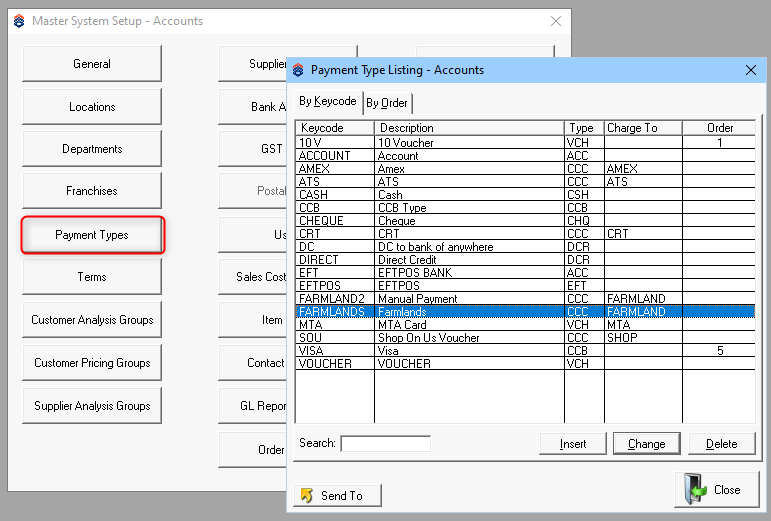
- Create or edit a payment type:
- Keycode: FARMLANDS
- Type: CCC
- Charge to Account: Farmlands
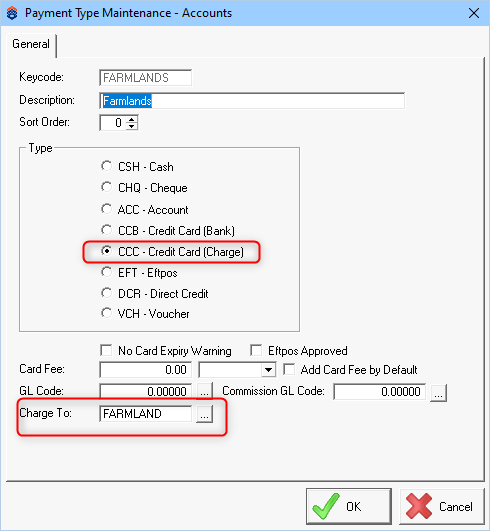
- Important: If a Farmlands account does not already exist, one must be created, as Farmlands users require a Charge to Account.
? Creating this payment type alone does not enable validation. Gateway setup is still required.
✅ Enable the Gateway API Key
- Go to Account
- Select Maintenance
- Open System Setup
- Go to General
- Open the Gateway section
- Enable the Gateway API Key
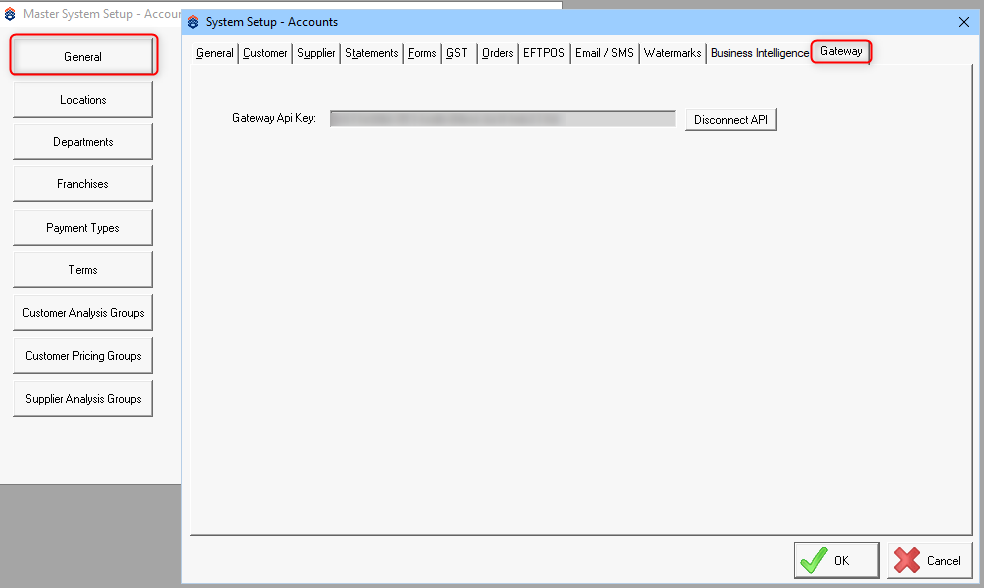
✅ Set up Merchant Configuration
This step links ORION to the Farmlands payment gateway.
- Navigate to Merchant Configuration in ORION
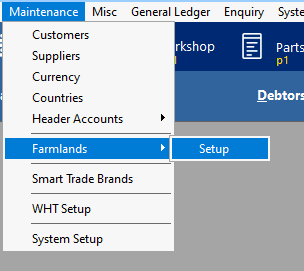
- Select Farmlands as the payment type
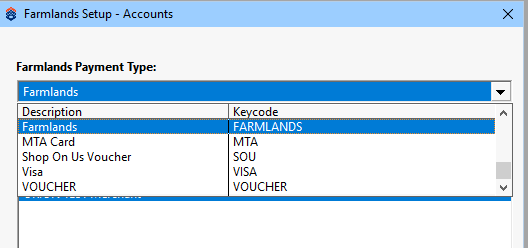 (This payment type must already exist)
 - Enter the Merchant Configuration Key provided by Farmlands
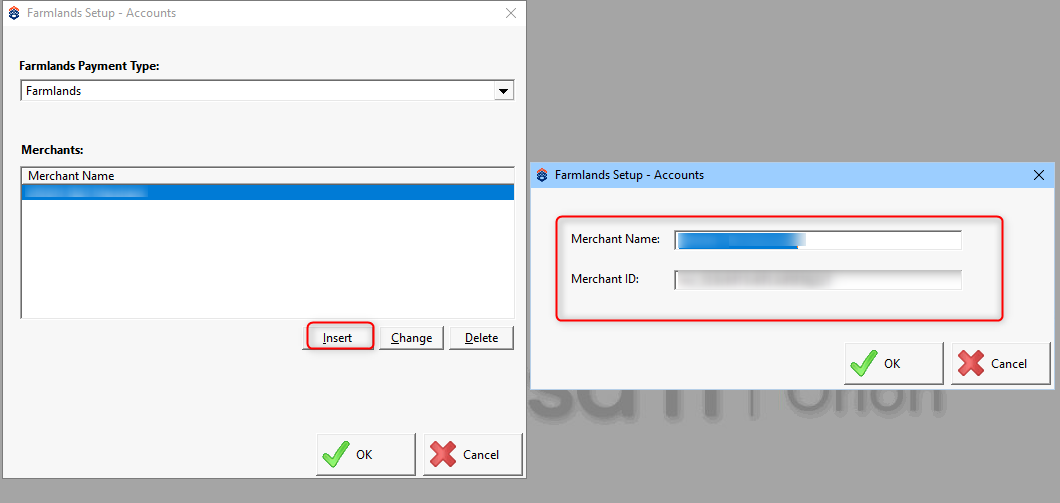
- Click OK to save
Once saved, the Farmlands payment integration is fully configured.
Using Farmlands during invoicing
When taking payment on an invoice:
- Open the invoice
- Select Receipt
- Choose Farmlands as the payment method then select Authorise
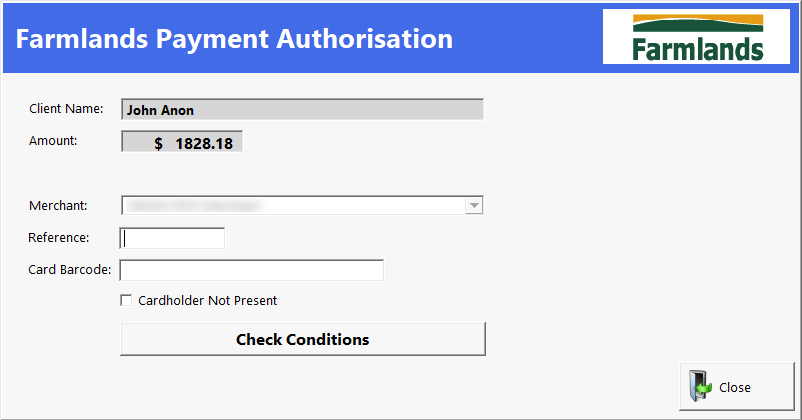
- Enter or scan the Farmlands card number
- Select Check Conditions
- Submit the payment
- Confirm customer signature and select Accept
ORION validates the card in real time and displays approval or decline messages accordingly. 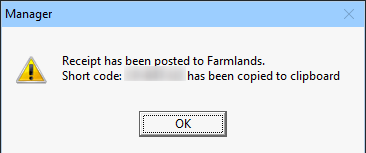
Expected Results
Payment is approved
Transaction completes successfully
Sale or invoice is marked as Paid
Payment method is recorded as Farmlands
Transaction appears correctly in reporting and reconciliation
Refunds and reversals
Refunds can only be processed for invoices that:
- Were paid using Farmlands
- Have been credited
To issue a refund:
- Open the credited invoice that was paid by Farmlands Payment
- Select Receipt
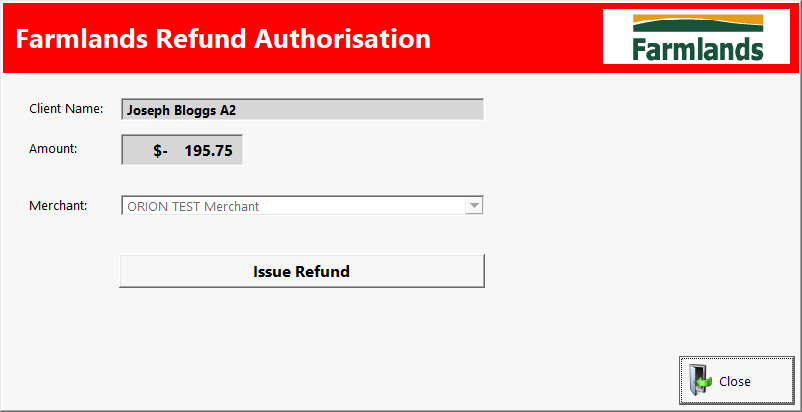
- Follow the standard refund process
- Confirm the Farmlands payment and issue the refund
The refund is validated and recorded against the original Farmlands transaction. 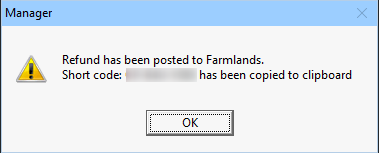
⚠️ Common decline scenarios
ORION will reject Farmlands payments when:
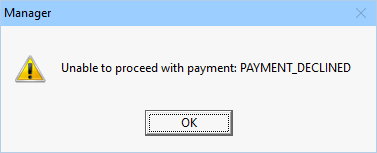
- The card has insufficient balance
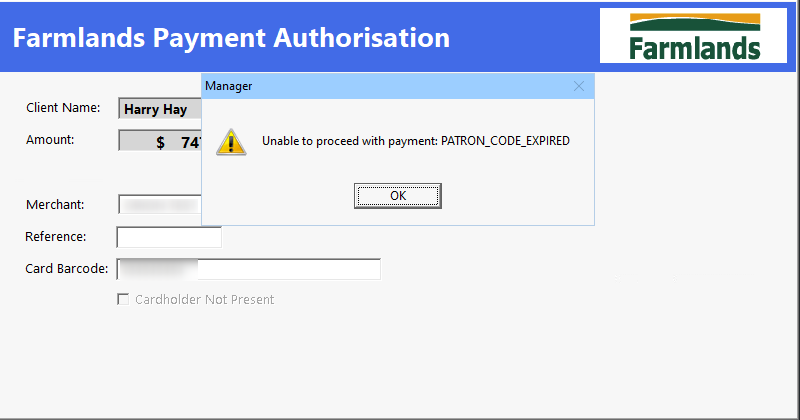
- The card is expired
- The card is inactive
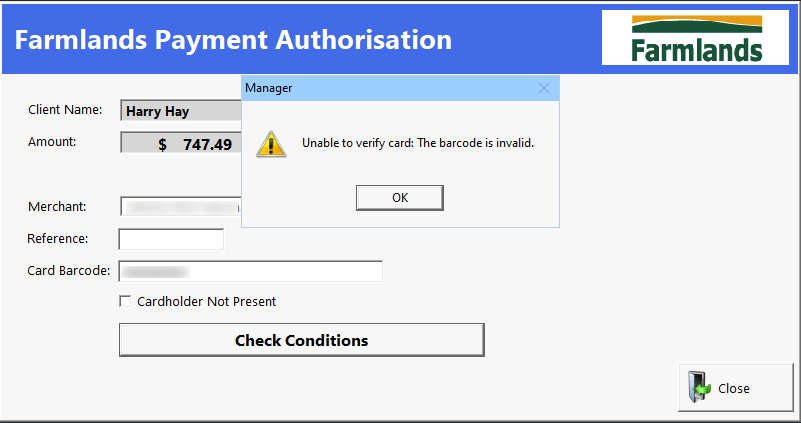
Clear error messages are displayed so staff can take appropriate action.