
Progressive Invoicing
Invoice selected lines from a job while remaining work stays in progress
Overview
For jobs that remain open over an extended period, it is not always practical to wait until all work is complete before issuing an invoice. Progressive Invoicing allows you to select specific lines from a job and invoice them independently, while the remaining lines stay on the job as work in progress. This is particularly useful for large or long-running jobs where customers require invoicing at intervals as work is completed.
? Note: Progressive Invoicing requires Add-on 73 to be enabled on in your Orion system. Contact your account manager or our support team if you are interested in activating this feature.
Creating a Progressive Invoice
Step 1: Open the Job
- Navigate to Workshop > Job Maintenance
- Open the job you want to invoice progressively
Step 2: Use the Split Function
- Click Split
- Two options are displayed: Normal Split and Progressive Invoice
A Normal Split is a standard job split with no job linkage, and displays invoice numbers as JobNo#-1 and JobNo#-2. A Progressive Invoice split creates a linked progressive invoice job and generates a new job number.
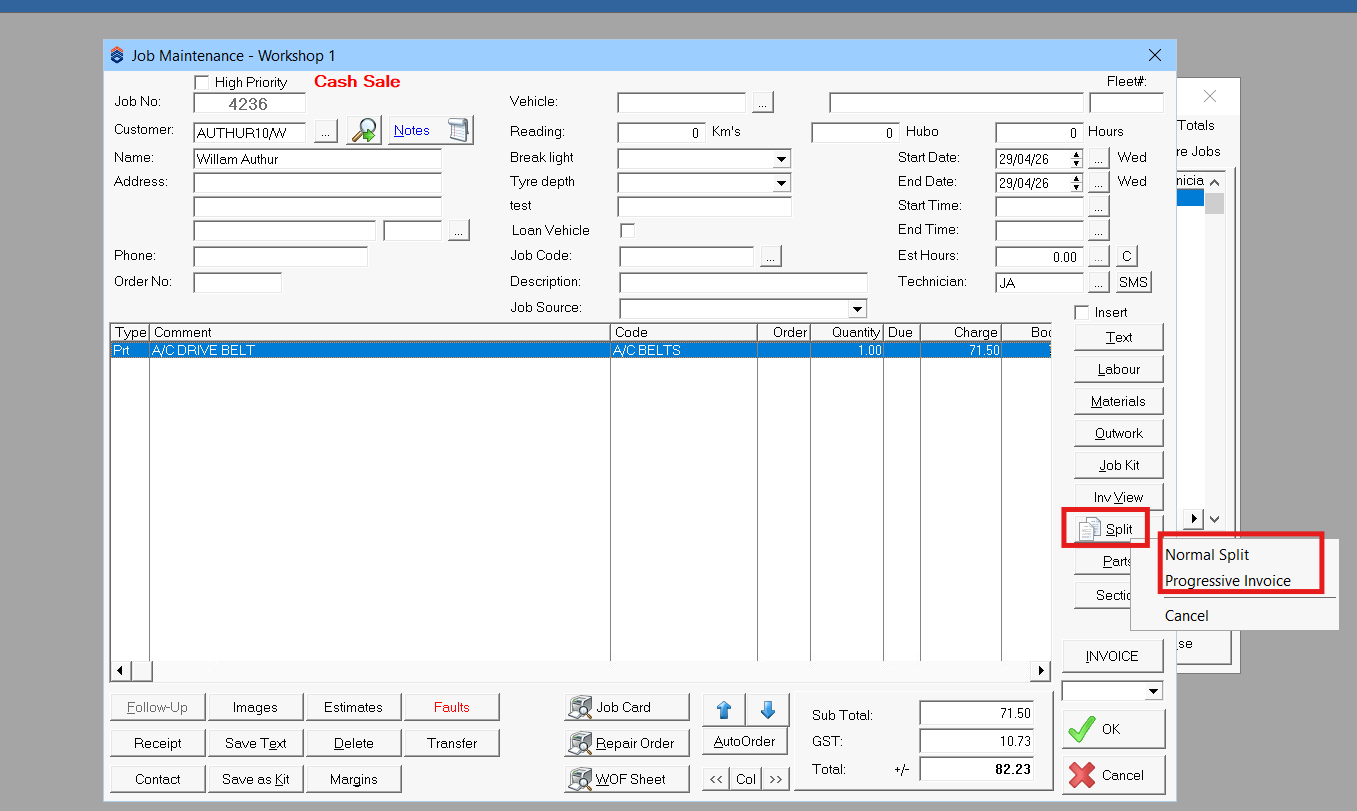
Step 3: Select Progressive Invoice
- Select Progressive Invoice from the split options
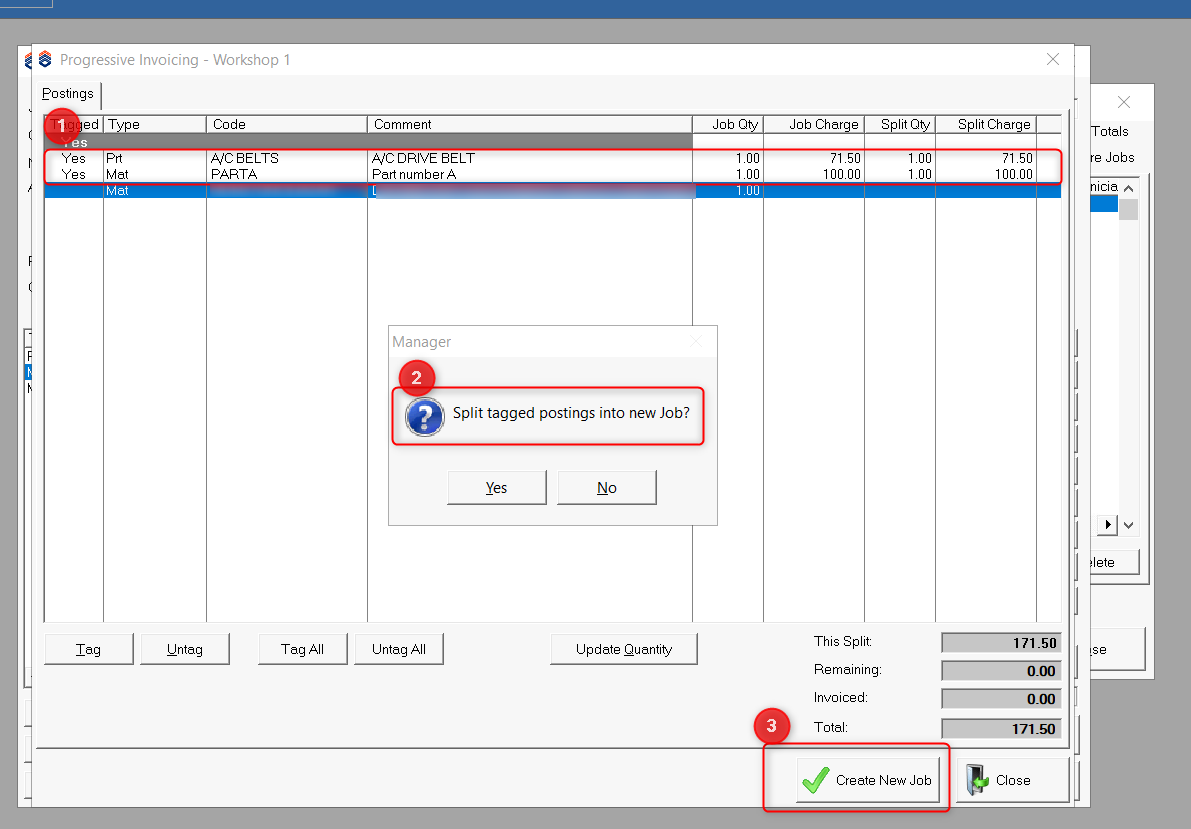
- A new screen opens showing all job items, with all items selected by default
- Select or deselect entire sections as required
- Select or deselect individual items by double-clicking them
- Confirm your selection
A new job is created containing the selected items, and a confirmation message is displayed.
Post-Split Behaviour
After the split is confirmed:
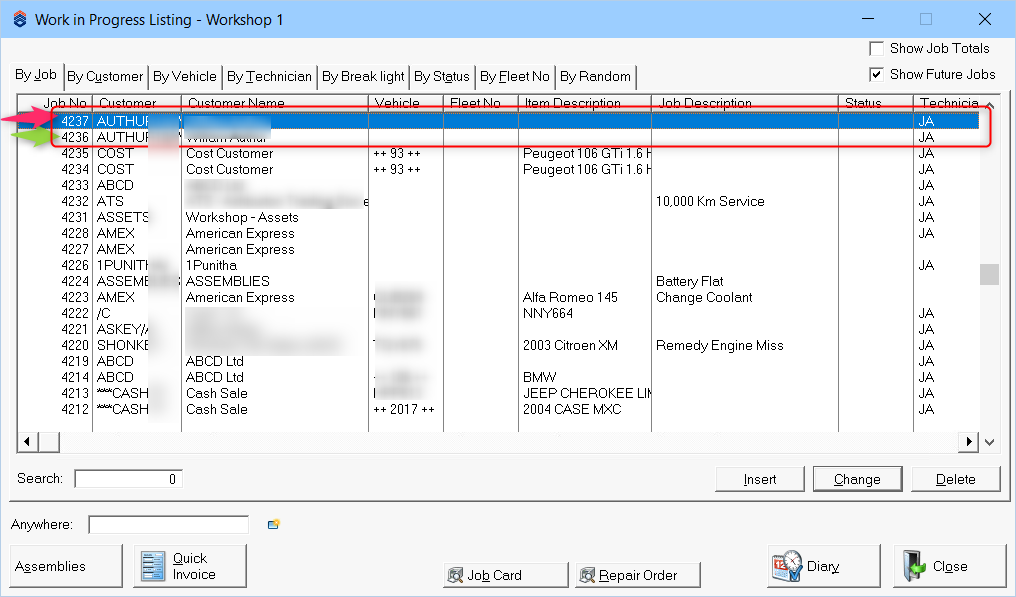
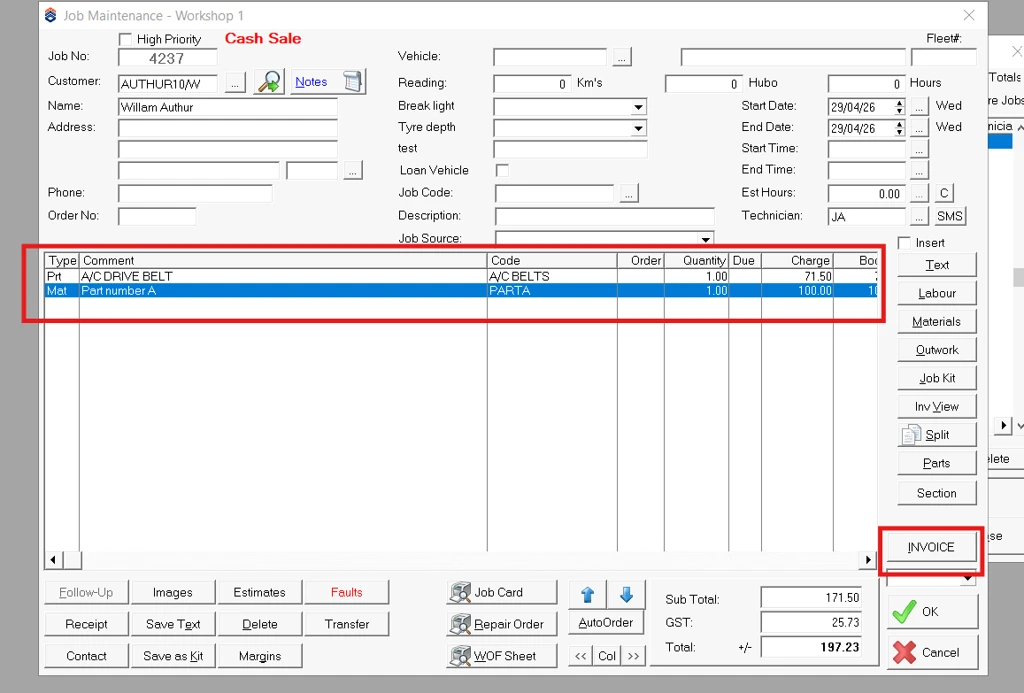
- The original job becomes the Master Job
- The selected lines are moved to the new progressive invoice job
- The new job can be invoiced independently
Job Classification
After performing a progressive split, jobs are categorised as follows:
Master Job
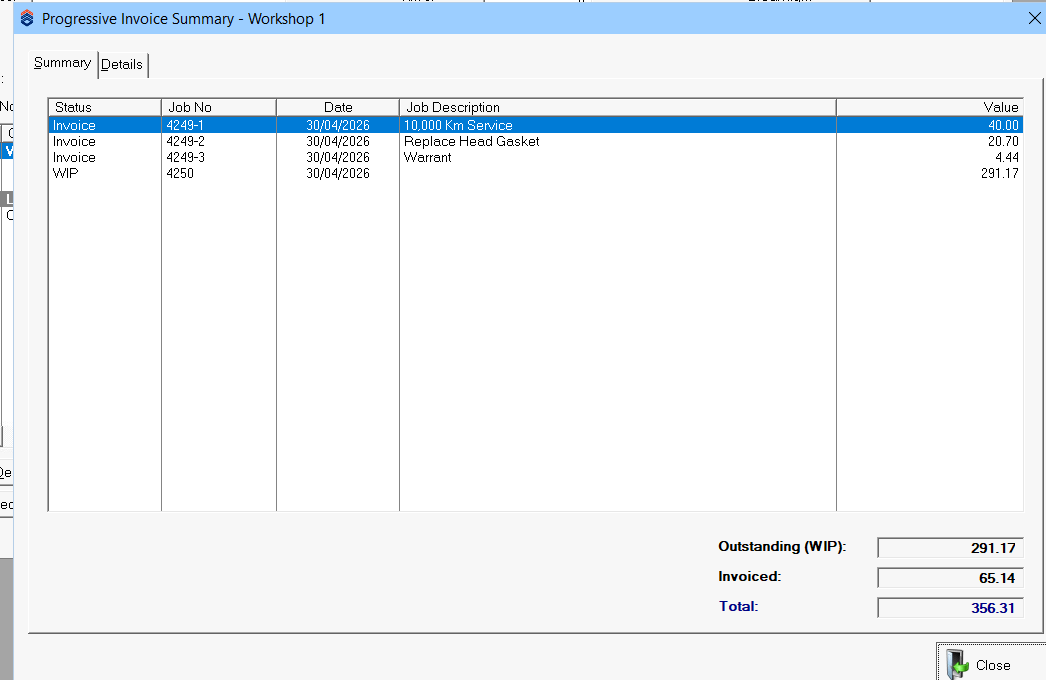
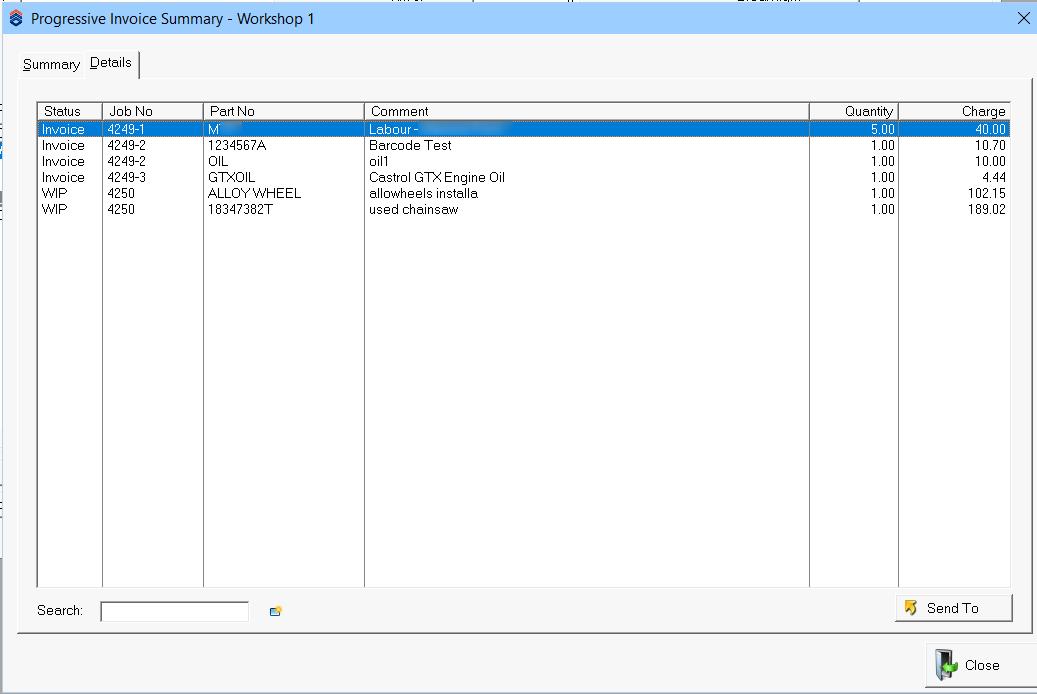
The original job, automatically flagged after the first progressive split. It maintains links to all related progressive invoice jobs and provides access to a Progressive Invoice Summary screen with two tabs:
- Summary tab: displays a consolidated view of all work in progress jobs, associated progressive splits, and associated progressive invoices, including the status, job number, date, job description, and value of each
- Details tab: contains detailed information about all parts associated with work in progress jobs, progressive invoices, and split invoices, including status, job number, part number, comment, quantity, and charge
Progressive Invoice Job
Created from the progressive split. Contains the selected lines, is linked to the Master Job, and can be invoiced independently. Associated invoice numbers are referenced with suffixes such as -1 and -2.
Normal Job
A standard job with no progressive invoicing applied.
Viewing Progressive Invoices
Progressive invoices can be accessed in two ways:
From the Master Job
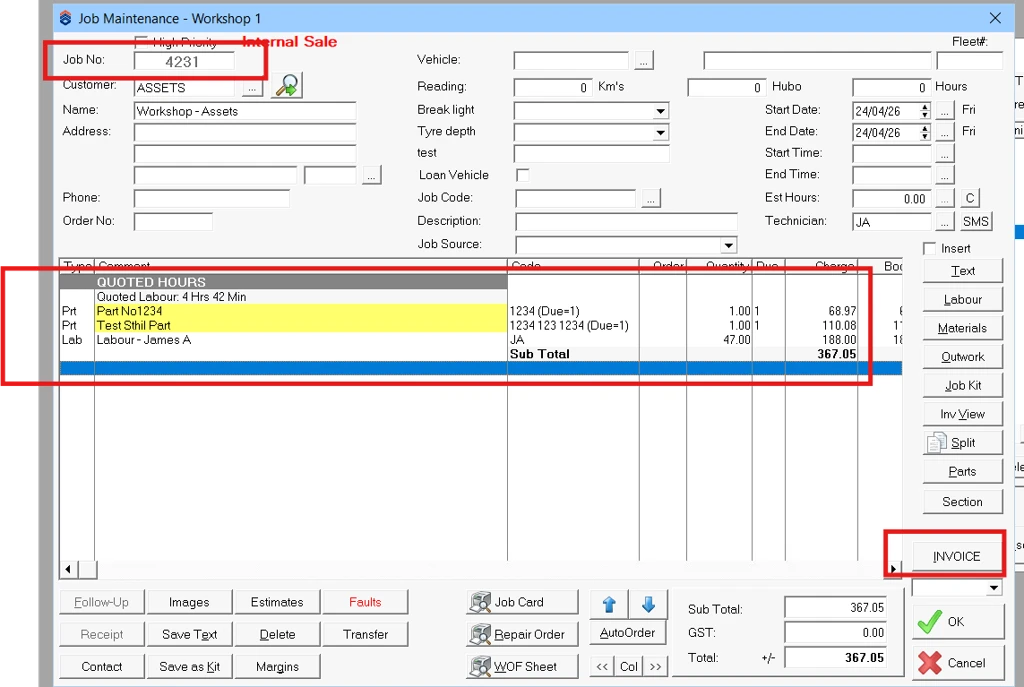
After performing a progressive split, a new button appears on the Job Maintenance screen. Clicking this opens the Progressive Invoice Summary screen, where you can view all linked progressive invoices.
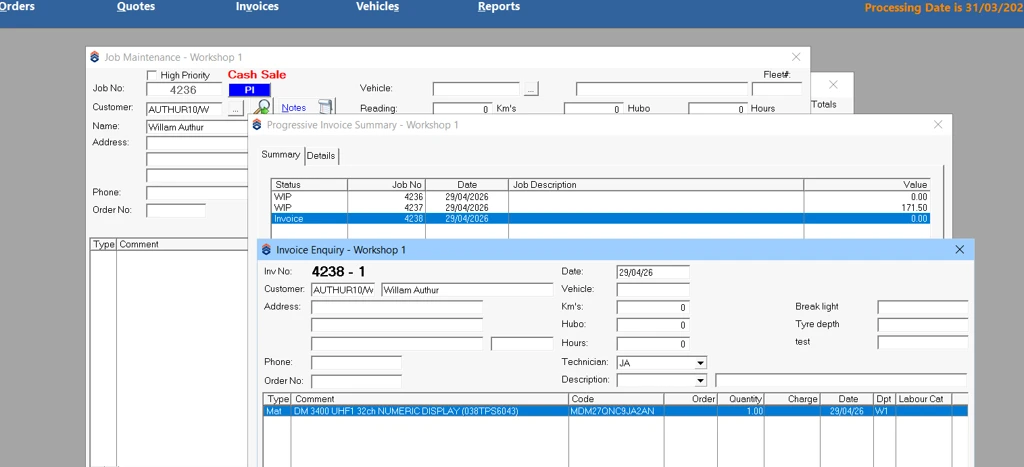
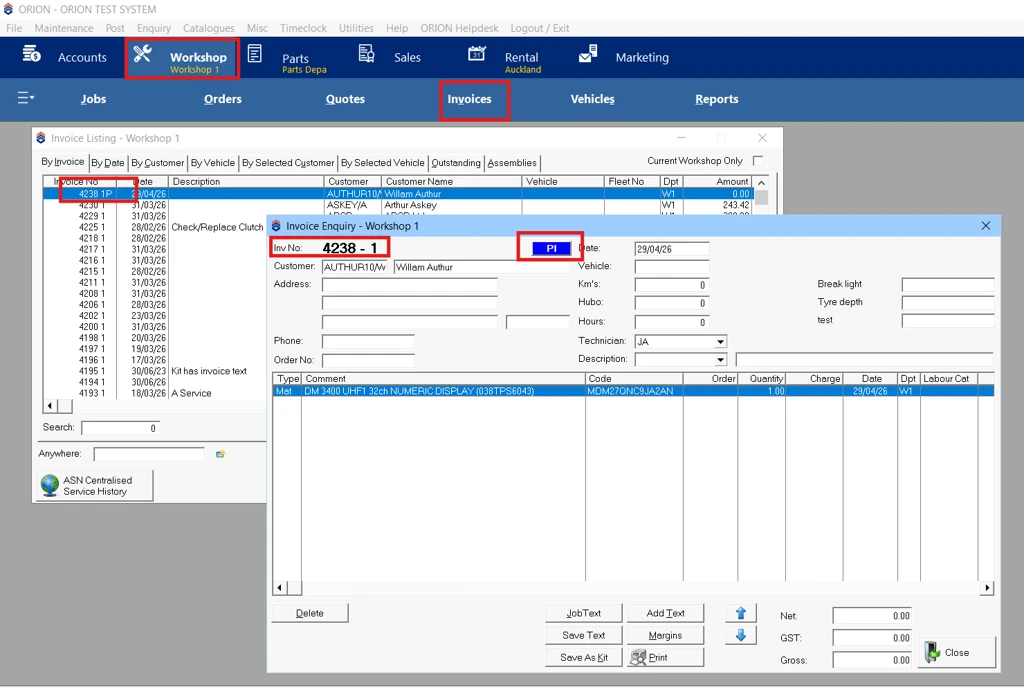
From Workshop > Invoices
- Navigate to Workshop > Invoices
- Open the relevant invoice
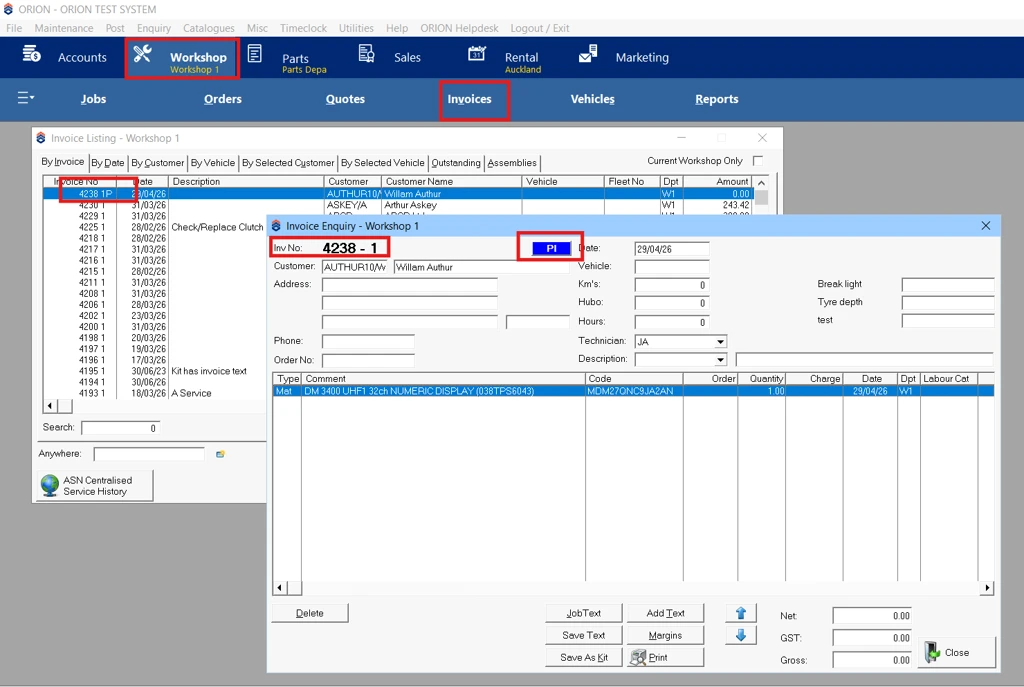
Tracking Line Items
When job lines are moved using Progressive Invoice split, the Master Job displays indicators against the relevant lines showing where those lines have been moved or invoiced, such as:
- Converted to Progressive Invoice - Job ####
- Invoiced under Job ####
Job linking is handled automatically by the system.
Important Notes
- When a progressive job is created from a main job, the association back to the master job is not visible within the progressive split job prior to invoicing
Didn’t find what you were looking for?
Our Support team are here to help, you can reach us by submitting a support ticket