
Overview
Orion 4.030 adds a second way to take EFTPOS payments: EFTPOS Online (Windcave HIT). HIT stands for Hosted Integration Terminal. Orion sends the payment amount to the Windcave terminal through Auxo Partner Hub, so staff no longer key the amount into the terminal by hand.
The existing EFTPOS Interface (Add-on 38) is unchanged and stays available, where you can now select Windcave as an option of which device(s) to integrate.
TABLE OF CONTENTS
What's New
- New integration option: EFTPOS Online (Windcave HIT) can be selected alongside the legacy EFTPOS Interface (Add-on 38).
- Partner Hub check: Windcave HIT cannot be set up or used until Partner Hub has been activated.
- Several terminals: If you have more than one Windcave terminal, choose which terminal to use for each payment.
- Surcharge handled by Windcave: The terminal works out the card surcharge. Orion receives it and posts it automatically to your AD+ fee account, separate from the sale.
- Clearer receipts: Receipts and transaction history show the sale amount, the surcharge and the total charged.
Note: Gateway is becoming Partner Hub. As this change is rolled out, you may still see Gateway referenced in this article or within Orion. Both names refer to the same feature.
Legacy and online integrations compared
| EFTPOS Interface (Add-on 38) | EFTPOS Online (Windcave HIT) | |
|---|---|---|
| Connection | Legacy DPS / Windcave interface | Windcave HIT through Auxo Partner Hub |
| Needs Partner Hub | No | Yes, must be activated first |
| Several terminals | No | Yes, choose a terminal per payment |
| Surcharge calculated by | Orion | Windcave, on the terminal |
| Surcharge posting | Orion surcharge settings | Automatic AD+ fee line from the amount Windcave returns |
| Existing customers | Keep working as today | Opt in by selecting this option |
Before you start
Have these in place before setting up Windcave. Missing any one of them is the most common reason a first payment fails.
- Orion 4.030 (or later) installed on every workstation that takes payments
- Partner Hub activated for your Orion system
- Windcave HIT credentials for the merchant: Username and Security Key
- The terminal identifier and a friendly name for each Windcave terminal
- The Windcave HIT feature enabled in Partner Hub
- A card fee (surcharge) GL code chosen for the EFTPOS payment type, see Set the card fee GL code on the payment type
- Terminals powered on, connected to the internet and showing the Windcave idle screen
Set Up
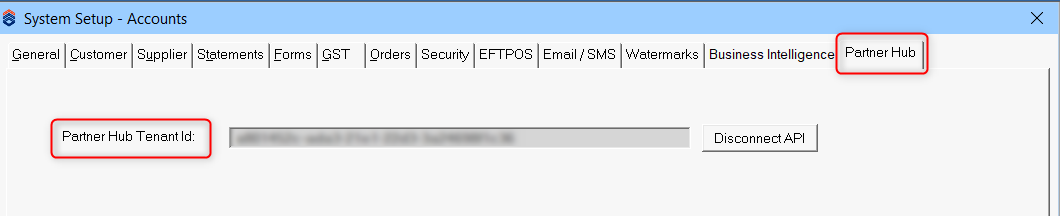
Activate Partner Hub (Gateway)
- In Orion, go to Account > System Setup > General > Gateway and connect the Gateway API key.
- Activate Partner Hub and save.
Add the Windcave configuration in Partner Hub
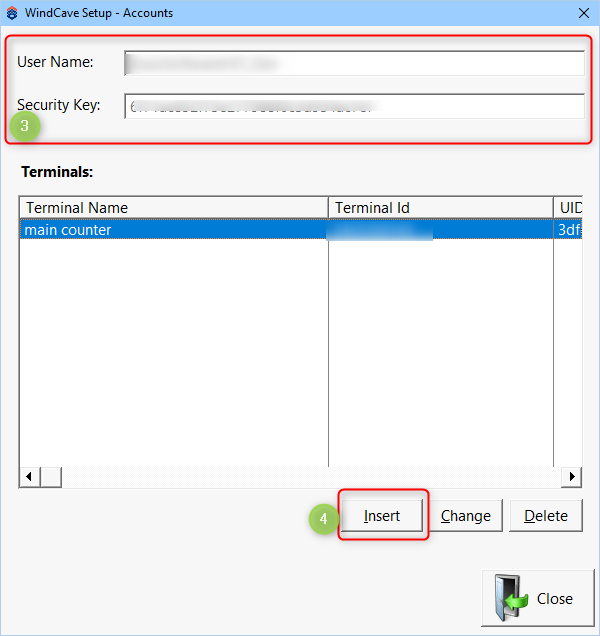
Orion holds one Windcave configuration, containing the HIT username, the HIT security key and the list of terminals.
- Open the EFTPOS setup screen in Orion: Account > System Setup > General > EFTPOS.
- You'll see two options: Temporarily EFTPOS on Manual and Use Windcave.

- Select Use Windcave, then select Terminals. If you see "Please activate Partner Hub before proceeding", Partner Hub isn't turned on yet.
- Enter the User name and Security Key for your Windcave terminals.
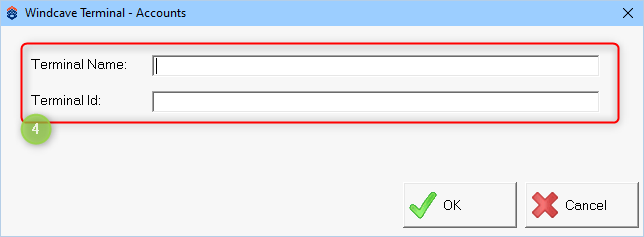
- Select Insert to add a terminal (you can add as many terminals as you need). Select the terminal name, then enter the terminal ID shown on the EFTPOS terminal in the Terminal Idfield.
Set the card fee GL code on the payment type
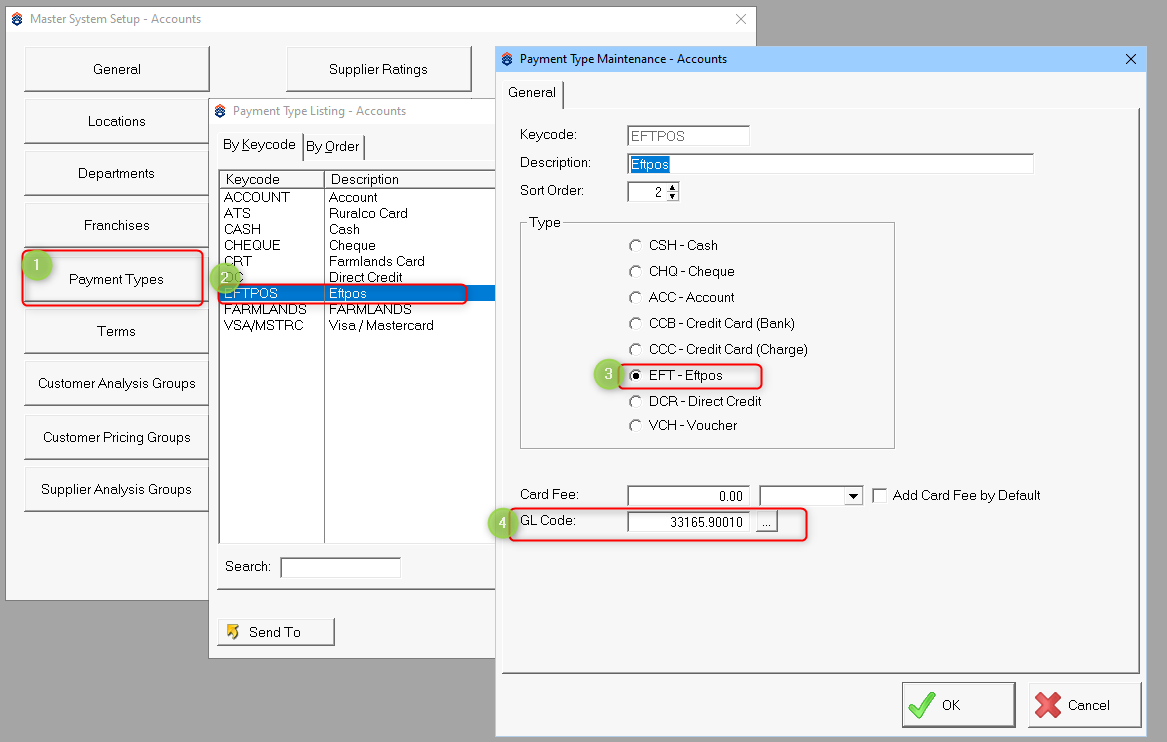
The surcharge Windcave returns is posted as an AD+ fee line to the card fee GL code on the EFTPOS payment type.
- Open Payment Type Maintenance and select the EFTPOS payment type. If there is no EFTPOS payment type yet, select Insert to create one.
- Choose the card fee (surcharge) GL code and save.
Taking a payment
This walk-through uses a workshop job invoice paid from the Debtors screen. The same terminal steps apply wherever the Authorise button is offered.
Start the payment in Orion
- Create and finalise the invoice as normal.
- Open the invoice for payment from Debtorsand choose the EFTPOS payment type.
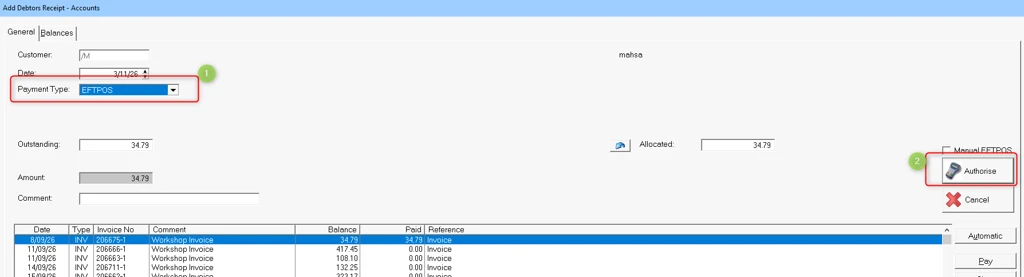
- Choose the terminal the customer is standing at and select Submit.
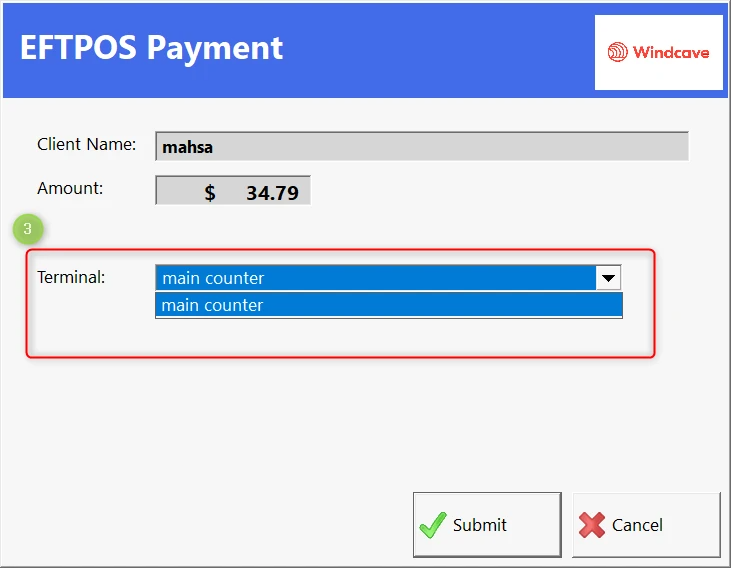
Steps on the terminal
The customer completes these steps on the terminal while Orion shows the progress.
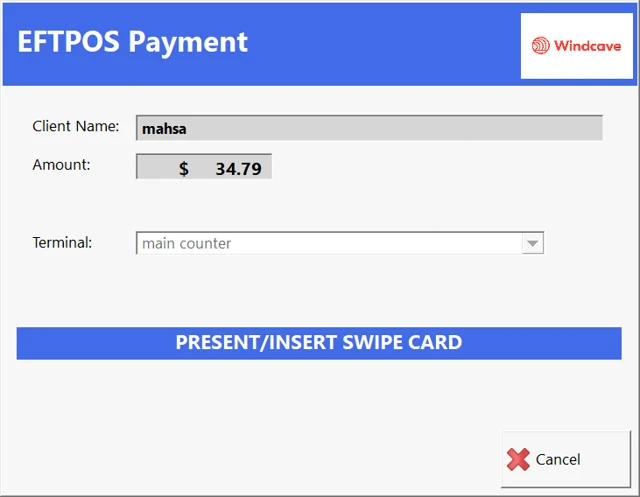
- Tap, insert or swipe the card.
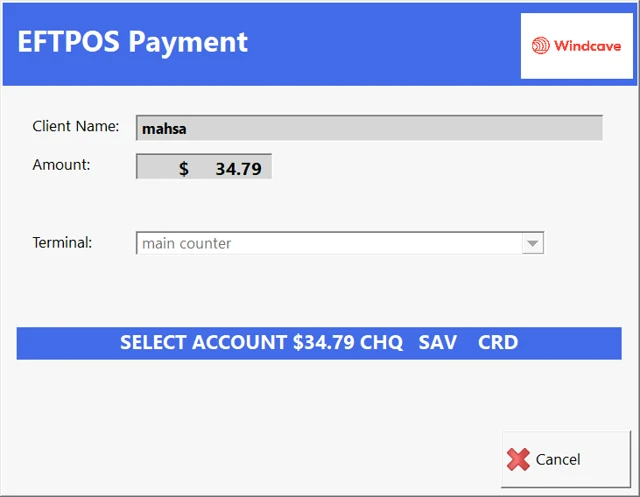
- Choose the account, for example CRD (credit), CHQ or SAV. This step is shown for swiped and inserted cards.
- Enter the PIN, or press Enter if the card has no PIN. A card without a PIN leads to a signature check.
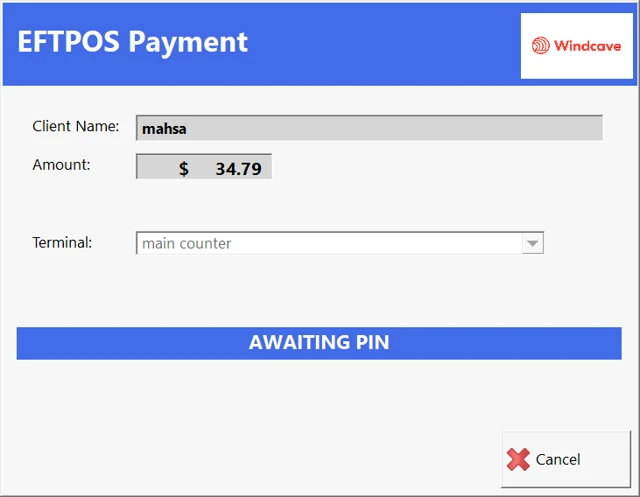
- Accept the surcharge (Yes / No). The surcharge is calculated by Windcave and shown on the terminal.
Signature check (signature cards only)
When the card is verified by signature, the terminal prints the merchant copy for the customer to sign and waits for the staff member to confirm.
- Ask the customer to sign the merchant copy and compare the signature with the card. Orion shows the signature prompt with two buttons.
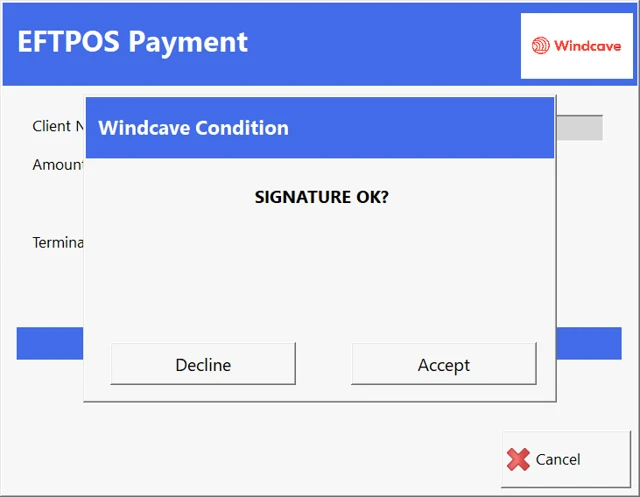
- Select Accept if the signature matches, or Declineif it does not.
- Accept: the payment completes.
- Decline: the payment is cancelled and nothing is charged.
Finish the payment
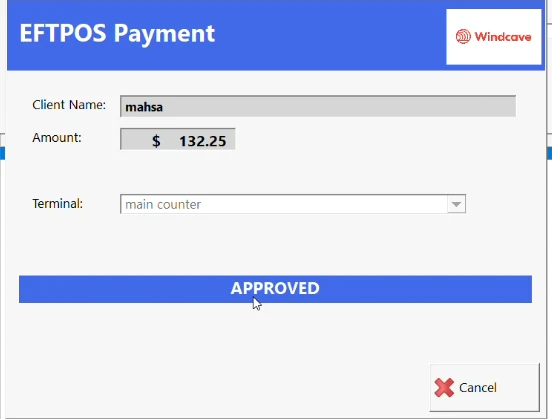
- Wait for the approved message in Orion. Orion confirms the result and releases the terminal for the next payment.
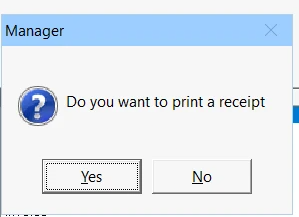
- Print or hand over the receipt. Customer copy and merchant copy are available.
- Check the invoice in Debtors. The invoice shows as paid, and a separate AD+ fee line holds the surcharge.

Every receipt and the transaction history show the sale amount, the surcharge and the total charged.
If something goes wrong
Every payment must be finished and confirmed by Orion before the terminal can take another one. This stops a customer being charged twice if Orion closes in the middle of a payment.
| Situation | What you see | What to do |
|---|---|---|
| Partner Hub not active | "Please activate Partner Hub before proceeding." | Activate Partner Hub, then select Windcave HIT again. |
| Terminal or invoice is busy | Orion says a transaction is already in progress for this terminal or invoice. | Finish the earlier payment first. Open the invoice named in the message and complete or cancel it, then try again. |
| Orion closed during a payment | The terminal shows "Sign Decline" or returns to idle. | Restart Orion, reopen the invoice and check whether it was paid before starting a new payment. |
| Signature declined | Payment cancelled. | Ask for another card or payment method. |
| Card declined | Declined message on the terminal and in Orion. | Ask for another card or payment method. Nothing is posted. |
| Terminal not in the list | The terminal cannot be chosen. | Check the terminal identifier in the Windcave terminal setup. |
Didn't find what you were looking for?
Our Support team are here to help, you can reach us by submitting a support ticket
or calling us on 09 583 2455