
The Streamline integration brings supplier invoices into Orion for review, helping reduce manual entry. Orion compares the submitted invoice lines with existing orders so you can check the match, investigate differences and create the supplier invoice.
TABLE OF CONTENTS
About Streamline
Acume, part of Streamline Business Group, provides accounts payable automation for New Zealand and Australian businesses. Its services include capturing PDF and electronic invoices, routing invoices for approval, purchase order matching and supplier statement reconciliation. This article covers the supplier invoice review workflow in Orion. See Acume's website for its wider services.
Setup and Activation
Setup requirements
| Requirement | What is needed |
|---|---|
| Hosted Orion system | Your Orion system must be hosted by Auxo. |
| Orion API add-on | The Orion API add-on must be enabled in your Orion system. |
| Streamline add-on | Add-on 146 – Streamline Supplier Invoices must be enabled. |
| Orion API tenant key | Streamline will need your Orion API tenant key to connect. |
Contact Auxo to arrange the add-ons and connection details.
Using Streamline Supplier Invoices
Open Supplier Invoice Review
- Open the Accounts module in Orion.
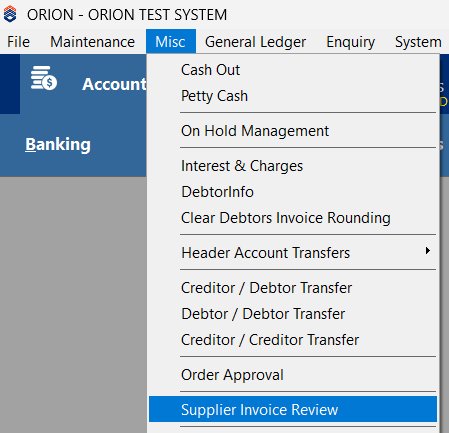
- Go to Misc > Supplier Invoice Review.
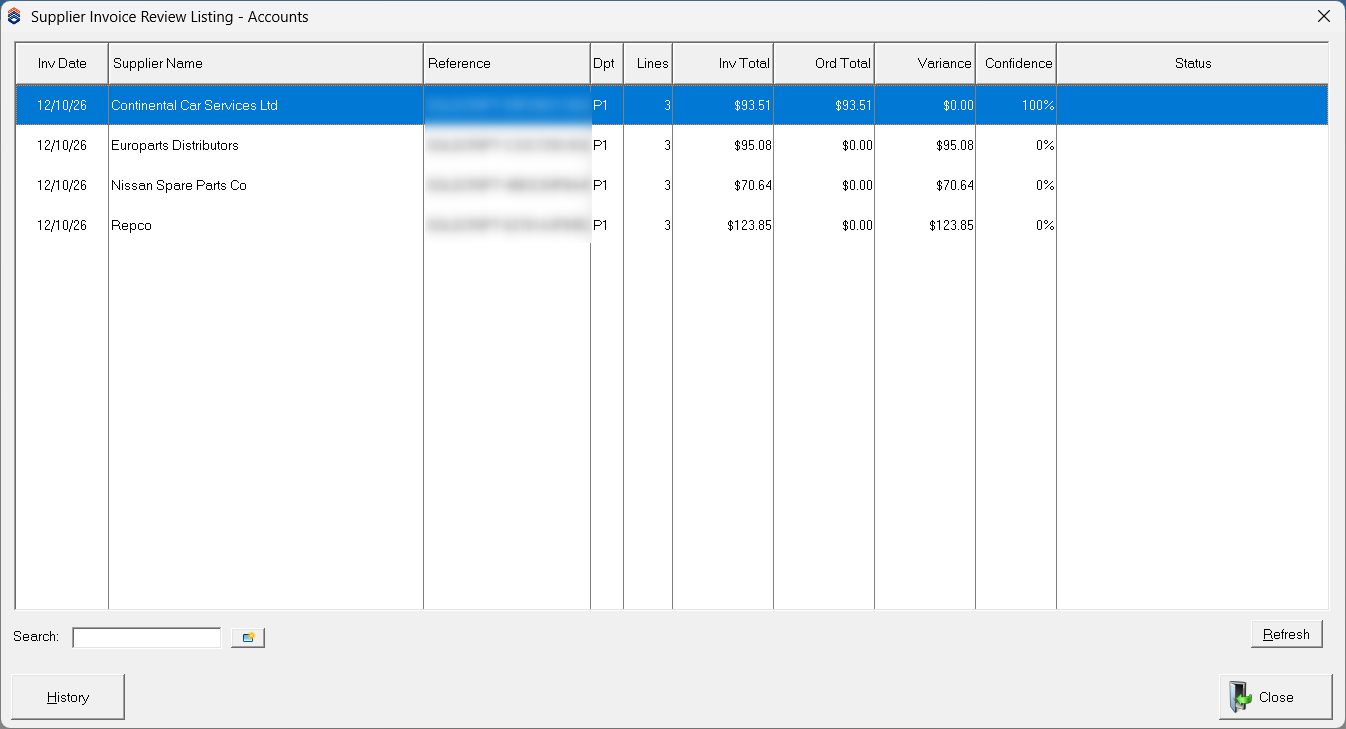
- Select Refresh to update the list, then double-click the invoice you want to review.
The listing shows the invoice date, supplier, reference, department, number of lines, invoice total, order total, variance, confidence and status. Use these details to identify invoices that need attention.
Workflow 1: the invoice matches an existing Orion order
- Open the invoice from the review listing.
- Check the supplier, reference and invoice total under Submitted Supplier Invoice. Use View Original Document to check the source invoice.
- Review Matched Orion Orders. Double-click an order to open it and check its details.
- Check each invoice line's part number, description, quantity, unit cost, total cost, Orion order number and Match Message. Green ticks and Match identify matched lines.
- Investigate any variance, red cross or warning before proceeding. In particular, check whether the matched order contains additional lines that are not on this invoice.
- When you are satisfied the invoice is correct, select Create Suppliers Invoice and review the details in Orion's supplier invoice entry screen before completing the normal supplier invoice process.
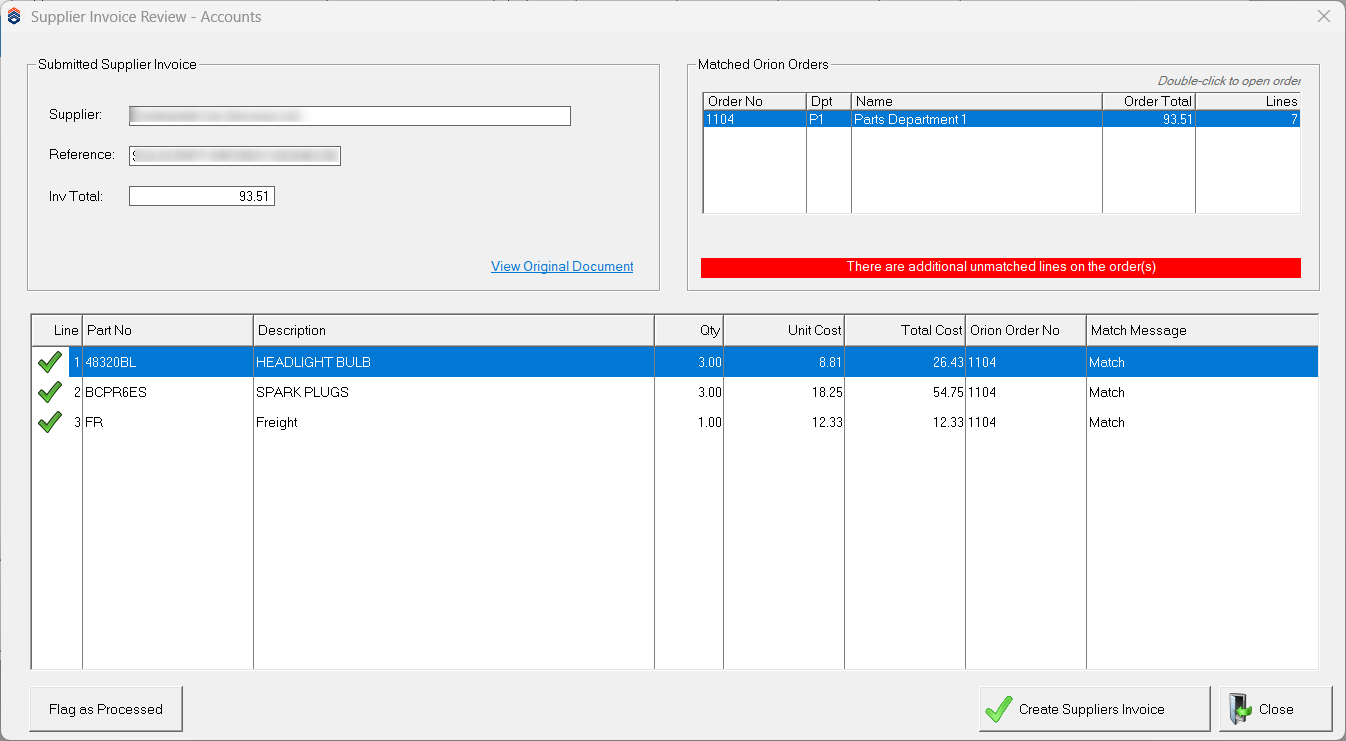
Important: A 100% confidence value does not mean every line on the Orion order is covered. The example has three matched invoice lines but seven lines on the order, so Orion displays There are additional unmatched lines on the order(s). Check the extra lines before creating the supplier invoice.
Workflow 2: no matching Orion order is found
If Orion cannot find a matching order, the review screen displays No matching Orion orders found. The Create Suppliers Invoice button is disabled in the example below.
Note: Only parts orders can be created through this workflow. The Order Type controls determine how the parts lines are allocated; they do not extend this feature to creating other kinds of order.
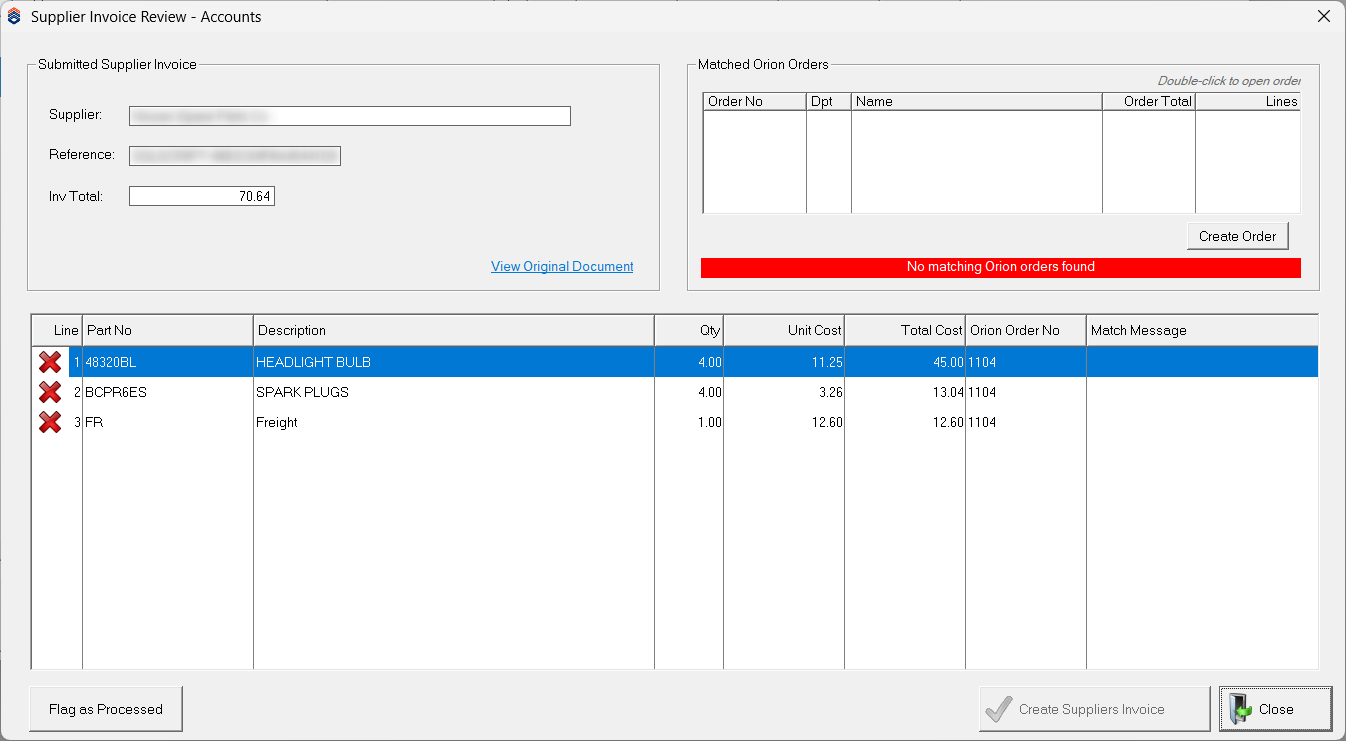
- Check the supplier and invoice against View Original Document, and confirm that an appropriate Orion order does not already exist.
- Select Create Order to open Streamline Ordering.
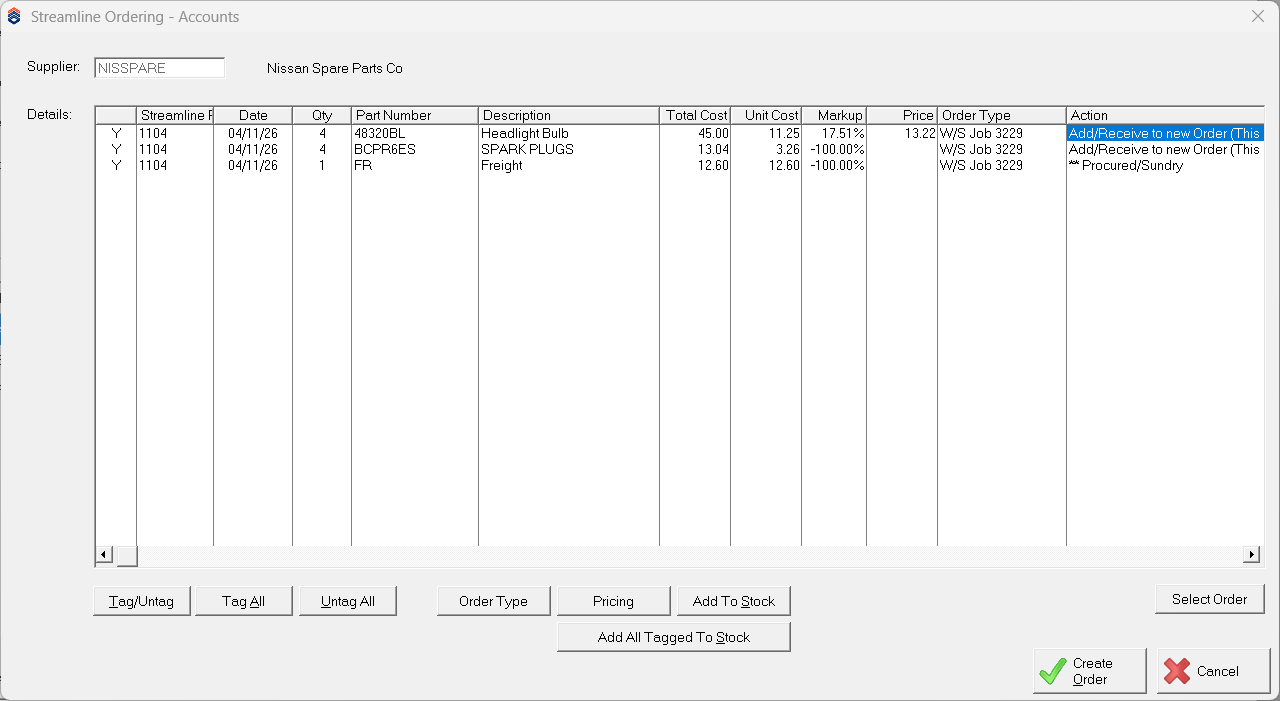
- Review the imported parts, quantities, unit costs and total costs. Use Tag/Untag, Tag All or Untag All to choose the required lines. A Y identifies a tagged line.
- Use Order Type to set the required allocation for the parts lines, and check the resulting Order Type column. The example shows parts allocated to W/S Job 3229.
- Use Pricing where required and check the Markup and Price columns.
- If a part needs to be added to stock, use Add To Stock or tag the required parts and select Add All Tagged To Stock. Complete the stock details, including the appropriate Analysis Group.
- Review the Action column for every selected line before processing, including any line shown as Procured/Sundry.
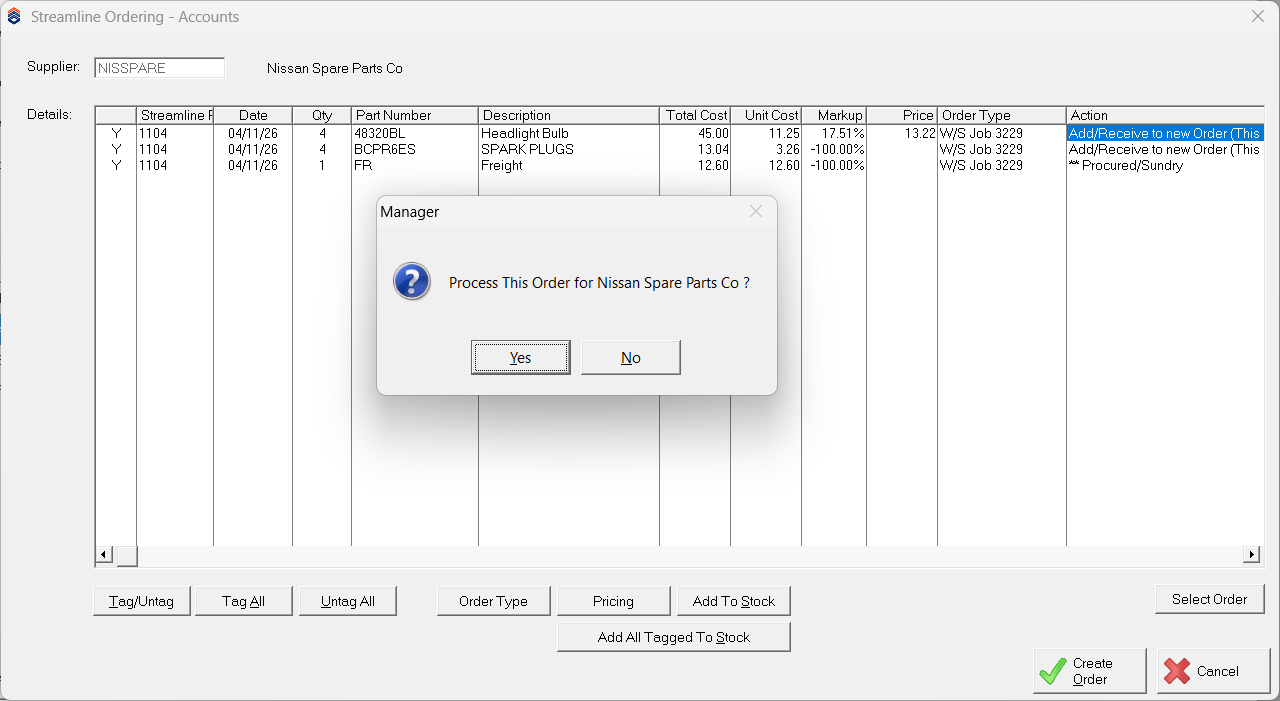
- Select Create Order, then select Yeswhen asked whether to process the order for the supplier.
- Back in Supplier Invoice Review, check the resulting Orion order number, order total and line matches.
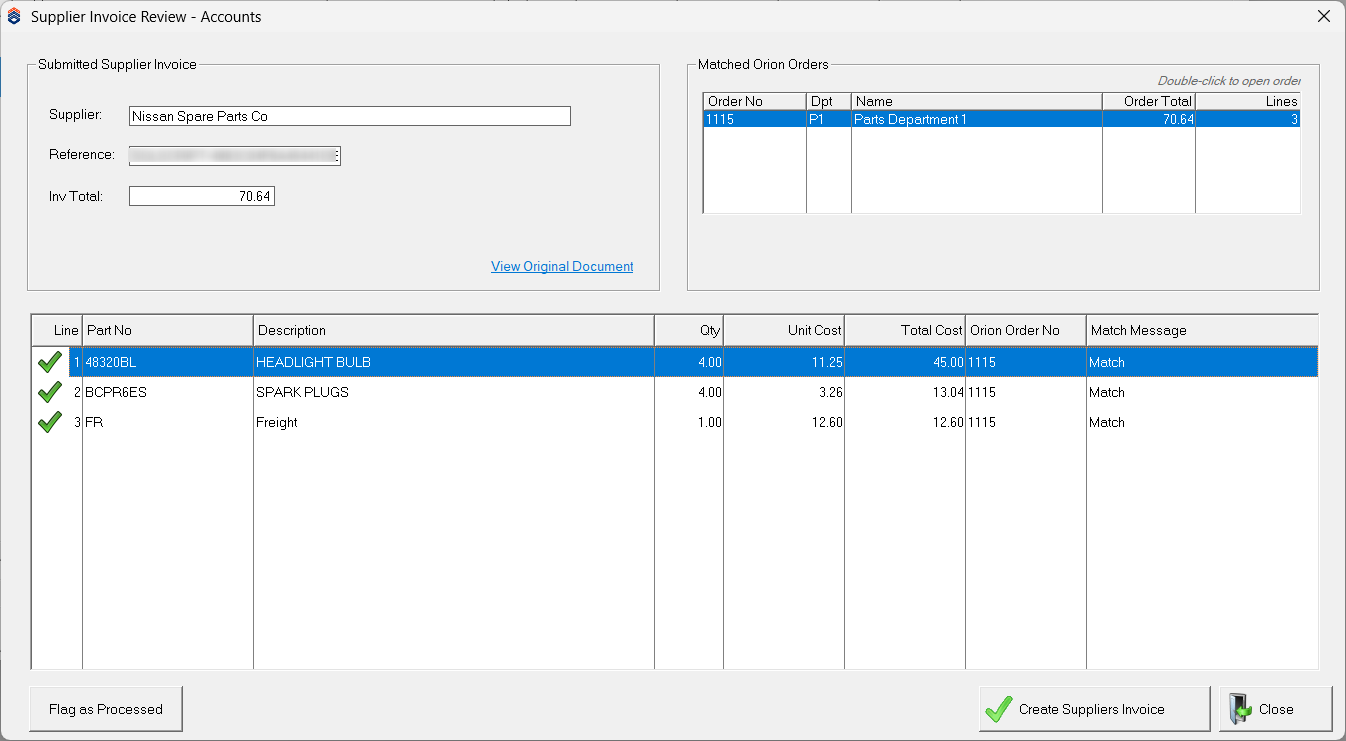
- When the details are correct, select Create Suppliers Invoice and complete the normal supplier invoice process.
The line review and stock creation controls are similar to those in the parts purchase order import guide. Streamline invoices arrive through the integration; the CSV/XLSX file layout and supplier import folders in that guide belong to the separate file import process.
Processed invoices and History
Use History on the listing to review processed invoices.
Flag as Processed moves an invoice out of the active review list and into History. Use it only when the invoice no longer needs to be processed from this screen. It is separate from Create Suppliers Invoice; flagging an item as processed does not create the supplier invoice.
Checks and troubleshooting
| Issue | What to check |
|---|---|
| Invoice is not in the list | Select Refresh. Confirm your Orion system is hosted by Auxo, both add-ons are enabled, and Streamline has the correct tenant key and has submitted the invoice. If it was already processed, check History. |
| No matching order | Check the supplier and order details. If a parts order needs to be created, follow Workflow 2. |
| Variance or unmatched lines | Compare the original invoice with the Orion order, including quantities, costs and freight. Resolve the differences before creating the supplier invoice. |
| Additional unmatched lines warning | Open the matched order and check its extra lines, even if all submitted invoice lines show Match. |
| Unexpected price or action during order creation | Check Order Type, Pricing, stock details and the Action column before selecting Create Order. |
Didn't find what you were looking for?
Our Support team are here to help, you can reach us by submitting a support ticket
or calling us on 09 583 2455